I got a site which is created by venkateswarlu
http://www.venkateswarlu.co.in/FAQ/
Which has the questions and answers for Sql server DB tools , .Net, BI, SharePoint.
It also has the some Blog links where we can find many interesting things about the above topics.
------
The sample databases given below
1. AdventureworksDW
2. Northwind
3. Pub
can be found at the following Blog
https://sites.google.com/site/cherukuribooks/
-------------------------------------------------------------------
Thursday, September 29, 2011

MEDICINE for "BLOOD CANCER"
'Imitinef Mercilet' is a medicine which cures blood cancer. Its
available free of cost at "Adyar Cancer Institute in Chennai".
Refer one of the friends Blog for more information about this:
http://abhirupdatta.blogspot.com/2010/08/i-just-came-to-know-about-this-amazing.html
available free of cost at "Adyar Cancer Institute in Chennai".
Refer one of the friends Blog for more information about this:
http://abhirupdatta.blogspot.com/2010/08/i-just-came-to-know-about-this-amazing.html
Select ALL in parameter of SSRS report
Select ALL as parameter value is one of the most common functionality which most of the reports have and there are number of ways to implement it.

I will explain below the way I do it and I find easiest. The driver of the solution is CASE option under WHERE clause of SELECT DataSet Query.
Lets see it through an simple Student Table example where we will Select student either on the basis of the Grade they are in or select all of them.
1. Records in Student table are

2. Create a simple report with DataSet Student as SELECT * FROM Student;

3. To add the Grade parameter and option for Select ALL
3.a. Create a DataSet for available Grades for Report parameter

3.b. Configure a Report parameter "Grade" as

3.c. Modify query for Student Dataset to allow filtering on Grades as

4.a. Run the Report for ALL grades

4.b. Run the Report for grade - X

I will explain below the way I do it and I find easiest. The driver of the solution is CASE option under WHERE clause of SELECT DataSet Query.
SELECT * FROM TableName
WHERE
(
CASE
WHEN @RepParam <> 'ALL' AND ColName= @RepParam THEN 1
WHEN @RepParam= 'ALL' THEN 1
END
) = 1 ;
WHERE
(
CASE
WHEN @RepParam <> 'ALL' AND ColName= @RepParam THEN 1
WHEN @RepParam= 'ALL' THEN 1
END
) = 1 ;
Lets see it through an simple Student Table example where we will Select student either on the basis of the Grade they are in or select all of them.
1. Records in Student table are

2. Create a simple report with DataSet Student as SELECT * FROM Student;

3. To add the Grade parameter and option for Select ALL
3.a. Create a DataSet for available Grades for Report parameter

3.b. Configure a Report parameter "Grade" as

3.c. Modify query for Student Dataset to allow filtering on Grades as

4.a. Run the Report for ALL grades

4.b. Run the Report for grade - X
SSRS 2008 Tutorial: Publishing a Report
Creating reports in Business Intelligence Development Studio is good for developers, but it doesn't help users at all. In order for the reports you build to be available to others, you must publish them to your Reporting Services server. To publish a report, you can use the Build and Deploy menu items in Business Intelligence Development Studio. Before you do this, you need to check the project's configuration to make sure that you've selected an appropriate server for the deployment.
Try It!
You can publish any report, but the first report you created is probably more visually interesting at this point. To publish the first report, follow these steps:
- Select File > Recent Projects and choose your ProductReport1 project.
- Select Project „ ProductReport1 Properties.
- Click the Configuration Manager button.
- Fill in the Target Server URL for your Report Server. If you're developing on the same computer where Reporting Services is installed, and you installed in the default configuration, this will be http://localhost/ReportServer. Figure 17-7 shows the completed Property Pages.
Figure 17-7: Setting the active configuration
- Click OK.
- Select Build > Deploy ProductReport1. The Output Window will track the progress of BIDS in deploying your report, as shown in Figure 17-8. Depending on the speed of your computer, building the report may take some time.
Figure 17-8: Setting report project properties
- Launch a web browser and enter the address http://localhost/reports.
- It may take several minutes for the web page to display; Reporting Services goes to sleep when it hasn't been used for a while and can take a while to spin up to speed. Figure 17-9 shows the result.
Figure 17-9: Deploying a report
- Click the link for the ProductReport1 folder.
- Click the link for the ProductReport1 report.


SSRS 2005 usage Short details - mini tutorial
Architecture
http://www.accelebrate.com/sql_training/ssrs_2008_tutorial.htm
-----------------------------------------------------------------------------------
Reporting Services has a quite a few components that work together seamlessly to provide a complete reporting solution. The full Reporting Services architecture includes development tools, administration tools, and report viewers. There are a number of ways to get to Reporting Services programmatically, including URL, SOAP and WMI interfaces.
Figure 17-1 shows a simplified diagram of the main Reporting Services components that we'll be using in this chapter.

Figure 17-1: Report Server architecture
In this chapter you'll learn about these components:
- Report Server is the core engine that drives Reporting Services.
- Report Manager is a Web-based administrative interface for Reporting Services.
- Report Designer is a developer tool for building complex reports.
- Report Builder is a simplified end-user tool for building reports.
- The Report Server database stores report definitions. Reports themselves can make use of data from many different data sources.
http://www.accelebrate.com/sql_training/ssrs_2008_tutorial.htm
-----------------------------------------------------------------------------------
SSRS Drill Down in Reports + Sorting of Names
The following video has the details of the drill down and sorting that are done in SSRS 2005, which little change in UI at the SSRS 2008
http://www.youtube.com/watch?v=_-IbUi0rN9A
For more information on the tutorial of this video, can be found at
http://www.learnitfirst.com/
To sort the names alone in the alphabetical wise
(To sort only the names according to the aphabetical order we have to use =ucase(Left(=field.value,1)) at usersort property of the parent group and also at the general, sort place)
--------------------------------------------------------------------
For matrix type of report use the query
Select
Month_Name,
Month,
Year,
(Order_Id) as Order_Count
from
Orders_F
Join
Date_D on Orders_F.ordered_date_key=Date_D.date_Key
where ordered_date between @Start_Date and @End_Date
Group By Month_Name,Year,Month
in such a way that the report preview
----------------------------------------------------------------------------------
http://www.youtube.com/watch?v=_-IbUi0rN9A
For more information on the tutorial of this video, can be found at
http://www.learnitfirst.com/
To sort the names alone in the alphabetical wise
(To sort only the names according to the aphabetical order we have to use =ucase(Left(=field.value,1)) at usersort property of the parent group and also at the general, sort place)
--------------------------------------------------------------------
For matrix type of report use the query
Select
Month_Name,
Month,
Year,
(Order_Id) as Order_Count
from
Orders_F
Join
Date_D on Orders_F.ordered_date_key=Date_D.date_Key
where ordered_date between @Start_Date and @End_Date
Group By Month_Name,Year,Month
in such a way that the report preview
| Year | Total | January | February | March | April | May | June | ||||
| 2010 | 31422 | 2230 | 2764 | 3297 | 3091 | 3303 | |||||
| 2011 | 21922 | 2535 | 2161 | 2918 | 2880 | 2920 | 3043 | ||||
----------------------------------------------------------------------------------
Tuesday, September 27, 2011
Handling Multiple Errors in SSIS
One actual failure in SSIS can trigger a whole series of error messages. For example, failure to convert a column value from a string to an integer in a Derived Column transform generates the following messages:
[Data Conversion [70]] Error: Data conversion failed while converting column “Fiscal year” (18) to column “NumericFiscalYear” (83). The conversion returned status value 2 and status text “The value could not be converted because of a potential loss of data.”.
[Data Conversion [70]] Error: SSIS Error Code DTS_E_INDUCEDTRANSFORMFAILUREONERROR. The “output column “NumericFiscalYear” (83)” failed because error code 0xC020907F occurred, and the error row disposition on “output column “NumericFiscalYear” (83)” specifies failure on error. An error occurred on the specified object of the specified component. There may be error messages posted before this with more information about the failure.
[DTS.Pipeline] Error: SSIS Error Code DTS_E_PROCESSINPUTFAILED. The ProcessInput method on component “Data Conversion” (70) failed with error code 0xC0209029. The identified component returned an error from the ProcessInput method. The error is specific to the component, but the error is fatal and will cause the Data Flow task to stop running. There may be error messages posted before this with more information about the failure.
[DTS.Pipeline] Error: SSIS Error Code DTS_E_THREADFAILED. Thread “WorkThread0″ has exited with error code 0xC0209029. There may be error messages posted before this with more information on why the thread has exited.
If you are logging errors to a flat file or an error logging table, then recording each error may be fine. However, if you’re writing the errors to the Windows event log, or sending them via email, you may not want to record multiple messages each time an error occurs. You might want to record only the first message, or you might want to group all the errors into a single log entry or email. Fortunately, the event model in SSIS allows you to easily customize how errors are handled.
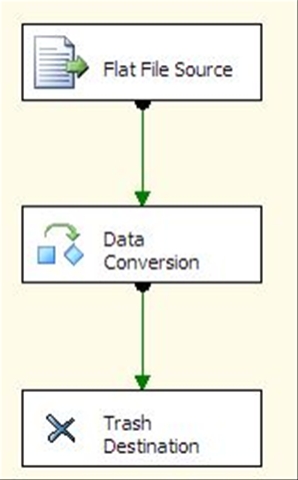
I’ve put together a small sample package that shows how you might accomplish this. The package contains a single data flow that loads a text file, attempts to convert a column from string to numeric, and writes it to a Trash destination (see www.SQLIS.com to get this component).
The text file has an invalid value in one of the columns, which will cause the data flow to fail, and generate the four messages listed above. The package is set up to capture all of the error messages generated, store them in a collection, and concatenate them into a single string when the package is finished executing. Once that is done, the resulting string could be emailed or recorded to a log.
As mentioned, the data flow is very straightforward:
 �
�
I’ve also created two variables at the package level: errorMessages as an Object, and emailText as a String. I’ll explain why later in the post.
The real work occurs in the event handlers. SSIS raises events for all executables(packages and tasks are both executables). The event we’re interested in is the OnError event, which is raised once for each error that occurs.
You get to the event handlers by selecting the Event Handlers tab in the SSIS designer. Once there, the Executable for which you want to capture events needs to be selected.

Since I want to handle errors for anything in the package, I’m setting the executable to CaptureErrors (the name of the package). By default, any event raised by a child executable (that is, an executable that is nested inside another executable) will also be raised in its parent. You can disable that behavior by setting the Propagate system variable, but that’s a topic for another post. I’m also using “OnError” from the list of events and have added a Script Task to the event handler.

The Script Task has two variables passed in: the System::ErrorDescription, which contains the text of the error message, and User:errorMessages, which I’ll use to keep track of all the error messages.

Here’s the script used in the Script Task:
Dim messages As Collections.ArrayList
Try
messages = CType(Dts.Variables(“errorMessages”).Value, Collections.ArrayList)
Catch ex As Exception
messages = New Collections.ArrayList()
End Try
messages.Add(Dts.Variables(“ErrorDescription”).Value.ToString())
Dts.Variables(“errorMessages”).Value = messages
Dts.TaskResult = Dts.Results.Success
I’m first attempting to retrieve the ArrayList from the errorMessages variable. If the value of the variable can’t be cast to an ArrayList, it indicates that it hasn’t been initialized yet. Once that has been handled, the error description is added to the ArrayList. This handles capturing the list of all error messages.
The next step is to process all the messages in order to email or log them. Since I only want to do this once, I’m using the OnPostExecute event, which fires when the executable is finished running.

There is another Script Task present in this event handler. This one has the User::errorMessages and User:emailText variables passed in.

The script in this task is concatenating a long string based on the error messages captured and returning it in the emailText variable:
Dim errorDesc As String
Dim messages As Collections.ArrayList
Try
messages = CType(Dts.Variables(“errorMessages”).Value, Collections.ArrayList)
Catch ex As Exception
‘If there is an exception – the object was never initialized, so there were no errors
Return
End Try
For Each errorDesc In messages
Dts.Variables(“emailText”).Value = Dts.Variables(“emailText”).Value.ToString + errorDesc + vbCrLf
Next
Dts.TaskResult = Dts.Results.Success
Once that has been done, the resulting string could be emailed or logged as desired. Since SSIS can generate fairly verbose error messages, I chose to store the messages in an ArrayList object. I then use the ArrayList to build the actual string message.
One actual failure in SSIS can trigger a whole series of error messages. For example, failure to convert a column value from a string to an integer in a Derived Column transform generates the following messages:
[Data Conversion [70]] Error: Data conversion failed while converting column “Fiscal year” (18) to column “NumericFiscalYear” (83). The conversion returned status value 2 and status text “The value could not be converted because of a potential loss of data.”.
[Data Conversion [70]] Error: SSIS Error Code DTS_E_INDUCEDTRANSFORMFAILUREONERROR. The “output column “NumericFiscalYear” (83)” failed because error code 0xC020907F occurred, and the error row disposition on “output column “NumericFiscalYear” (83)” specifies failure on error. An error occurred on the specified object of the specified component. There may be error messages posted before this with more information about the failure.
[DTS.Pipeline] Error: SSIS Error Code DTS_E_PROCESSINPUTFAILED. The ProcessInput method on component “Data Conversion” (70) failed with error code 0xC0209029. The identified component returned an error from the ProcessInput method. The error is specific to the component, but the error is fatal and will cause the Data Flow task to stop running. There may be error messages posted before this with more information about the failure.
[DTS.Pipeline] Error: SSIS Error Code DTS_E_THREADFAILED. Thread “WorkThread0″ has exited with error code 0xC0209029. There may be error messages posted before this with more information on why the thread has exited.
If you are logging errors to a flat file or an error logging table, then recording each error may be fine. However, if you’re writing the errors to the Windows event log, or sending them via email, you may not want to record multiple messages each time an error occurs. You might want to record only the first message, or you might want to group all the errors into a single log entry or email. Fortunately, the event model in SSIS allows you to easily customize how errors are handled.
I’ve put together a small sample package that shows how you might accomplish this. The package contains a single data flow that loads a text file, attempts to convert a column from string to numeric, and writes it to a Trash destination (see www.SQLIS.com to get this component).
The text file has an invalid value in one of the columns, which will cause the data flow to fail, and generate the four messages listed above. The package is set up to capture all of the error messages generated, store them in a collection, and concatenate them into a single string when the package is finished executing. Once that is done, the resulting string could be emailed or recorded to a log.
As mentioned, the data flow is very straightforward:
 �
�I’ve also created two variables at the package level: errorMessages as an Object, and emailText as a String. I’ll explain why later in the post.
The real work occurs in the event handlers. SSIS raises events for all executables(packages and tasks are both executables). The event we’re interested in is the OnError event, which is raised once for each error that occurs.
You get to the event handlers by selecting the Event Handlers tab in the SSIS designer. Once there, the Executable for which you want to capture events needs to be selected.
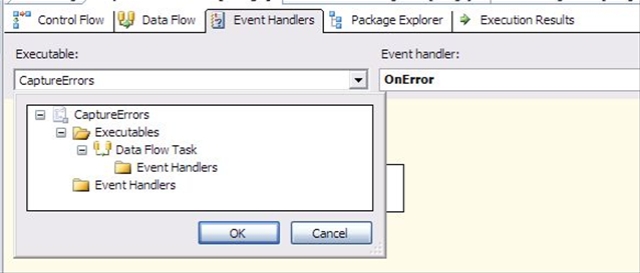
Since I want to handle errors for anything in the package, I’m setting the executable to CaptureErrors (the name of the package). By default, any event raised by a child executable (that is, an executable that is nested inside another executable) will also be raised in its parent. You can disable that behavior by setting the Propagate system variable, but that’s a topic for another post. I’m also using “OnError” from the list of events and have added a Script Task to the event handler.
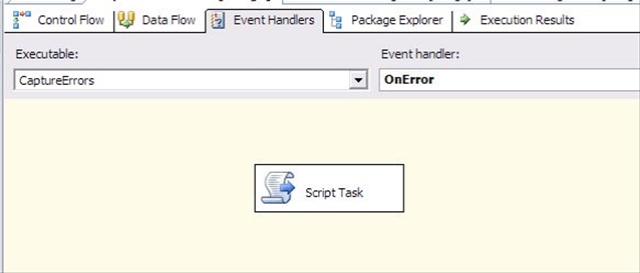
The Script Task has two variables passed in: the System::ErrorDescription, which contains the text of the error message, and User:errorMessages, which I’ll use to keep track of all the error messages.
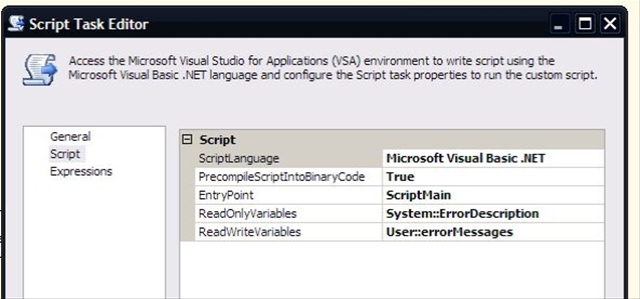
Here’s the script used in the Script Task:
Dim messages As Collections.ArrayList
Try
messages = CType(Dts.Variables(“errorMessages”).Value, Collections.ArrayList)
Catch ex As Exception
messages = New Collections.ArrayList()
End Try
messages.Add(Dts.Variables(“ErrorDescription”).Value.ToString())
Dts.Variables(“errorMessages”).Value = messages
Dts.TaskResult = Dts.Results.Success
I’m first attempting to retrieve the ArrayList from the errorMessages variable. If the value of the variable can’t be cast to an ArrayList, it indicates that it hasn’t been initialized yet. Once that has been handled, the error description is added to the ArrayList. This handles capturing the list of all error messages.
The next step is to process all the messages in order to email or log them. Since I only want to do this once, I’m using the OnPostExecute event, which fires when the executable is finished running.
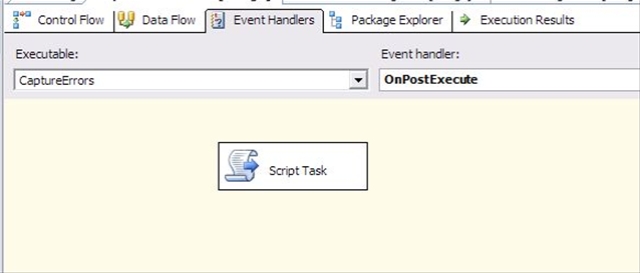
There is another Script Task present in this event handler. This one has the User::errorMessages and User:emailText variables passed in.
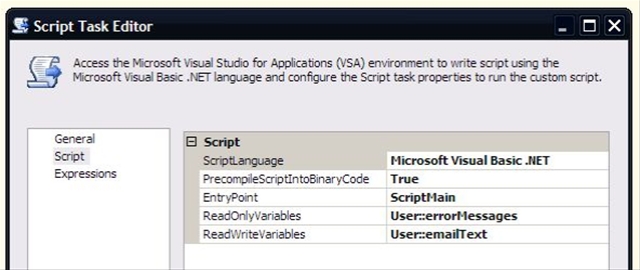
The script in this task is concatenating a long string based on the error messages captured and returning it in the emailText variable:
Dim errorDesc As String
Dim messages As Collections.ArrayList
Try
messages = CType(Dts.Variables(“errorMessages”).Value, Collections.ArrayList)
Catch ex As Exception
‘If there is an exception – the object was never initialized, so there were no errors
Return
End Try
For Each errorDesc In messages
Dts.Variables(“emailText”).Value = Dts.Variables(“emailText”).Value.ToString + errorDesc + vbCrLf
Next
Dts.TaskResult = Dts.Results.Success
Once that has been done, the resulting string could be emailed or logged as desired. Since SSIS can generate fairly verbose error messages, I chose to store the messages in an ArrayList object. I then use the ArrayList to build the actual string message.
Subscribe to:
Posts (Atom)